
IPTV installation guide
Setting up IPTV takes one player app and the login details from your Vivid TV email. Vivid TV works with every IPTV player, so use the one you prefer. This guide walks through the IPTV installation on a Firestick, a Smart TV, Android TV, Apple TV, a phone, a computer and a MAG box. Jump to your device and follow the four steps.
Before you start
To install IPTV you need three things: a device that runs apps, an internet connection of about 10 Mbps for HD or 25 Mbps for 4K, and your login details. The login arrives by email within 10 minutes of your order. Nothing else is required, so there is no dish, aerial socket or engineer visit involved.
→
Run a speed test on the device you will watch on, because Wi-Fi behind a television is often half the router's figure.
→
Keep the email with your login details open on your phone while you type them into the TV.
→
Use a network cable for the main television if the router is in the same room.
→
Update the device's software first, since old versions hide or block newer player apps.
Pick your route
Every IPTV setup follows the same pattern: install a player, enter your login, wait for the channel list. What changes is where the player comes from. Most devices have it in their own app store, a Firestick sometimes needs one extra setting switched on, and a MAG box uses a portal address instead of an app.
Device
Where the player comes from
Extra step
Firestick
Amazon's app store, or a file you install yourself
Allow apps from unknown sources
Samsung and LG Smart TV
The TV's own app store
None
Android TV, Google TV
Google Play on the TV
None
Apple TV, iPhone, iPad
The App Store
None
Android phone
Google Play
None
Windows PC, Mac
A desktop player you download
None
MAG box
No app, a portal address
Send us your MAC address
01
Amazon Fire TV
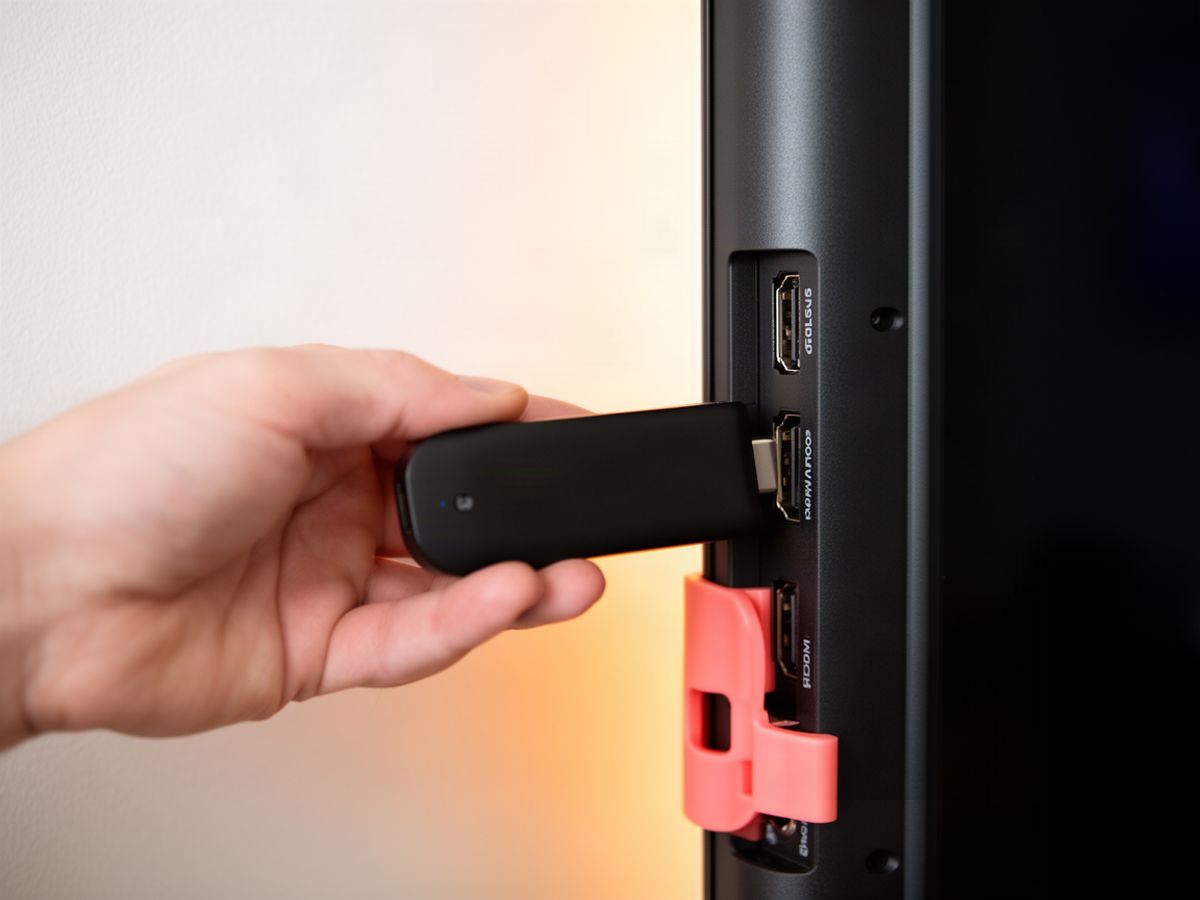
To install IPTV on a Firestick, open the app store from the home screen, search for an IPTV player and install it. If the player you want is not listed, switch on apps from unknown sources and install it from a file instead. Then open the player and enter your Vivid TV login details.
1
Open Find, then Search, and look for an IPTV player in Amazon's store.
2
If you install from a file, go to Settings, My Fire TV, Developer Options and allow apps from unknown sources for your downloader.
3
Open the player and choose to add a new login or playlist.
4
Type in the details from your email and wait while the channel list loads.
Good to know
The newest Fire TV sticks run Vega OS and only accept apps from Amazon's store. Check the model before you buy one for IPTV. The IPTV Firestick guide lists which models still allow outside apps.
02
Samsung and LG
On a Samsung or LG Smart TV, IPTV runs through a player from the TV's own app store, so there is no stick or box to add. Press the home button, open the store, search for an IPTV player and install it. Open it, enter your login details and the channels load on the TV itself.
1
Press Home and open the app store on the TV.
2
Search for an IPTV player and install one with a recent update date.
3
Open the player and add your login details.
4
Save the player to the home row so it is one press away next time.
Good to know
Some Smart TV players are free for a short period and then ask for a one-off activation fee. That fee goes to the app maker and is separate from your subscription. The IPTV player comparison shows which ones charge.
03
Android TV and Google TV
Android TV and Google TV sets, and boxes that run them, install IPTV players straight from Google Play. Open Play on the TV, search for an IPTV player built for a remote control, install it and enter your login. Sony, Philips and TCL televisions with Google TV all follow these same four steps.
1
Open Google Play from the Apps row on the TV.
2
Search for an IPTV player and check that it is listed for TV, not only for phones.
3
Install it, open it and choose to add a login.
4
Enter your details, then set the TV guide to UK time in the player's settings.
04
tvOS
Apple TV runs IPTV through a player from the App Store on the box itself. Open the App Store on your Apple TV, search for an IPTV player, download it and enter your login details. The setup is identical on Apple TV HD and Apple TV 4K, although only the 4K model plays 4K streams.
1
Open the App Store on the Apple TV home screen.
2
Search for an IPTV player and download it.
3
Open the player and add your login details with the remote or your iPhone's keyboard.
4
Turn on Match Content in the Apple TV video settings so sport plays at the right frame rate.
05
iOS and iPadOS
On an iPhone or iPad, install an IPTV player from the App Store, open it and enter your login details. The same login you use on the television works here, as long as only one screen is playing at a time. A tablet on Wi-Fi handles HD comfortably, and 4K makes little difference on a screen that size.
1
Open the App Store and search for an IPTV player.
2
Install it and allow it to use your local network if it asks.
3
Add your login details and wait for the channel list.
4
Check your data allowance before streaming on mobile data, because an hour of HD uses several gigabytes.
06
Phones and tablets
An Android phone or tablet installs IPTV from Google Play in about the time it takes to make a cup of tea. Search for an IPTV player, install it, open it and enter your login details. Use the same details as on your television, and stop the stream on one device before starting it on another.
1
Open Google Play and search for an IPTV player.
2
Install it and open it.
3
Choose to add a login and enter the details from your email.
4
Pin your favourite channels so you are not scrolling the full list on a small screen.
07
Windows and Mac
On a Windows PC or Mac, IPTV plays in a desktop player that you download and install like any other program. Open the player, add your login details and the channels appear in a list beside the picture. A laptop is also the quickest way to test your login when a television is giving you trouble.
1
Download a desktop IPTV player from its maker's site.
2
Install it and open it.
3
Add your login details in the player's settings.
4
Connect the laptop to the TV with an HDMI cable if you want the picture on the big screen.
08
Portal devices
A MAG box does not use a player app. It connects through a portal address that you type into the box's settings, and it is identified by the MAC address printed on its underside. Vivid TV supports MAG boxes: send us your MAC address when you order and we email the portal address with your login.
Have the MAC address ready when you order, or contact us if you cannot find it. If you are choosing hardware and have not bought yet, the IPTV box guide explains why most people are better served by a stick or the apps in their TV.
After installation
If IPTV stalls after installation, the cause is usually the connection, not the install. Check four settings in order: the speed on the device itself, the Wi-Fi band, the player's buffer size and the device's free storage. Most stalling is fixed by the first two, and none of them needs a reinstall.
→
Test the speed on the TV or stick, and move it away from the back of the set with an HDMI extender if it is low.
→
Switch the device to the 5 GHz Wi-Fi band when the router is in the same room.
→
Raise the buffer size in the player's settings by one step.
→
Clear the player's cache if the device has less than 1 GB of free storage.
Still stuck? The IPTV not working checklist separates a Wi-Fi fault from an account fault in five minutes.
You need a login before you can install IPTV, and the login comes with a plan. Vivid TV plans run from 3 to 24 months from £24.99, with 34,000 live channels and 195,000 films and series in up to 4K. Your login arrives within 10 minutes, and a 72-hour refund covers you if it does not work.
See plans and prices